Accessibility you can see on the page.
Run axe-core on every screen at once, then see the failing elements outlined where they are. Hover anything for its accessible name, role, keyboard focus and contrast.
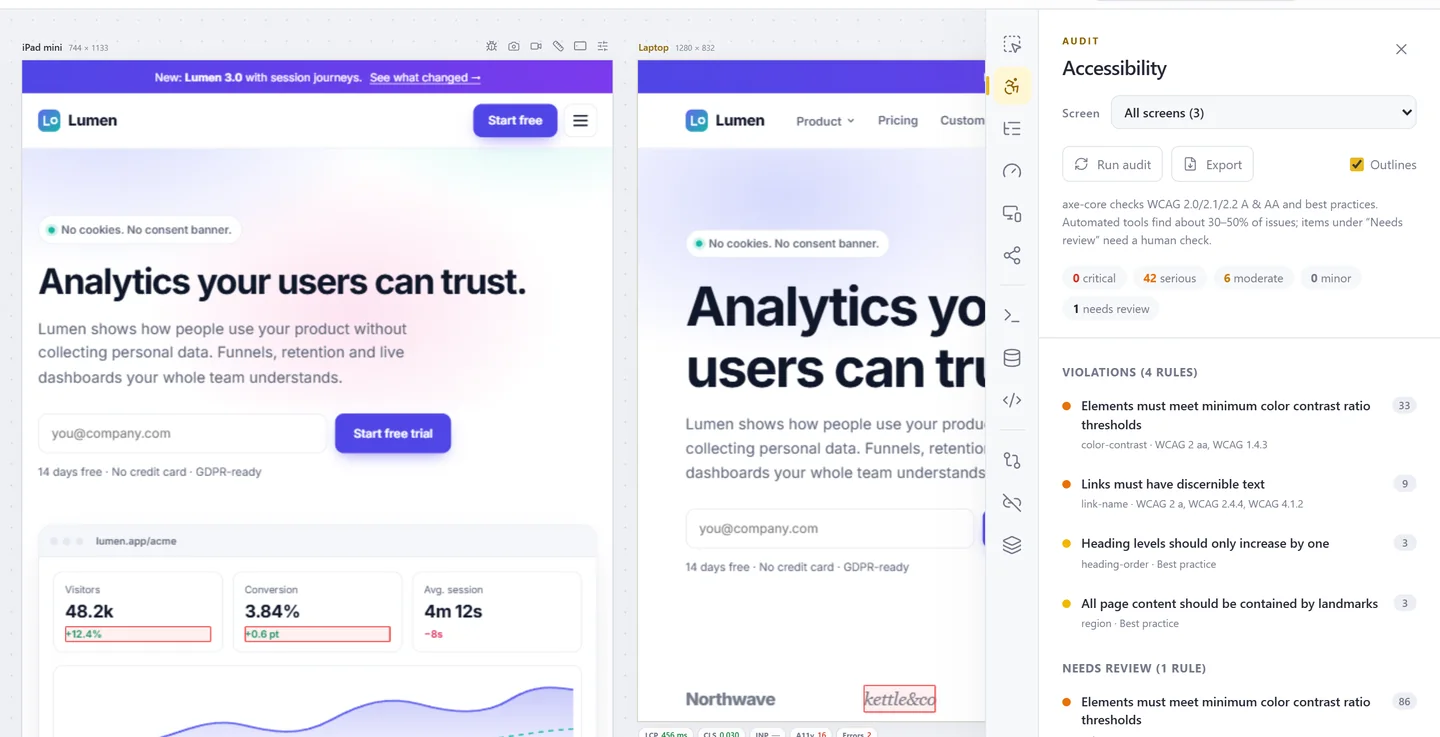
WCAG 2.2 audit on every screen
axe-core 4.14 checks WCAG 2.0, 2.1 and 2.2 A and AA plus best practices. Results are grouped by rule and severity, with the screens each one affects, and go into your report.
- Runs on all screens or one
- Click a finding to scroll the screen to it
- Items that need a human check listed apart
- Export the findings
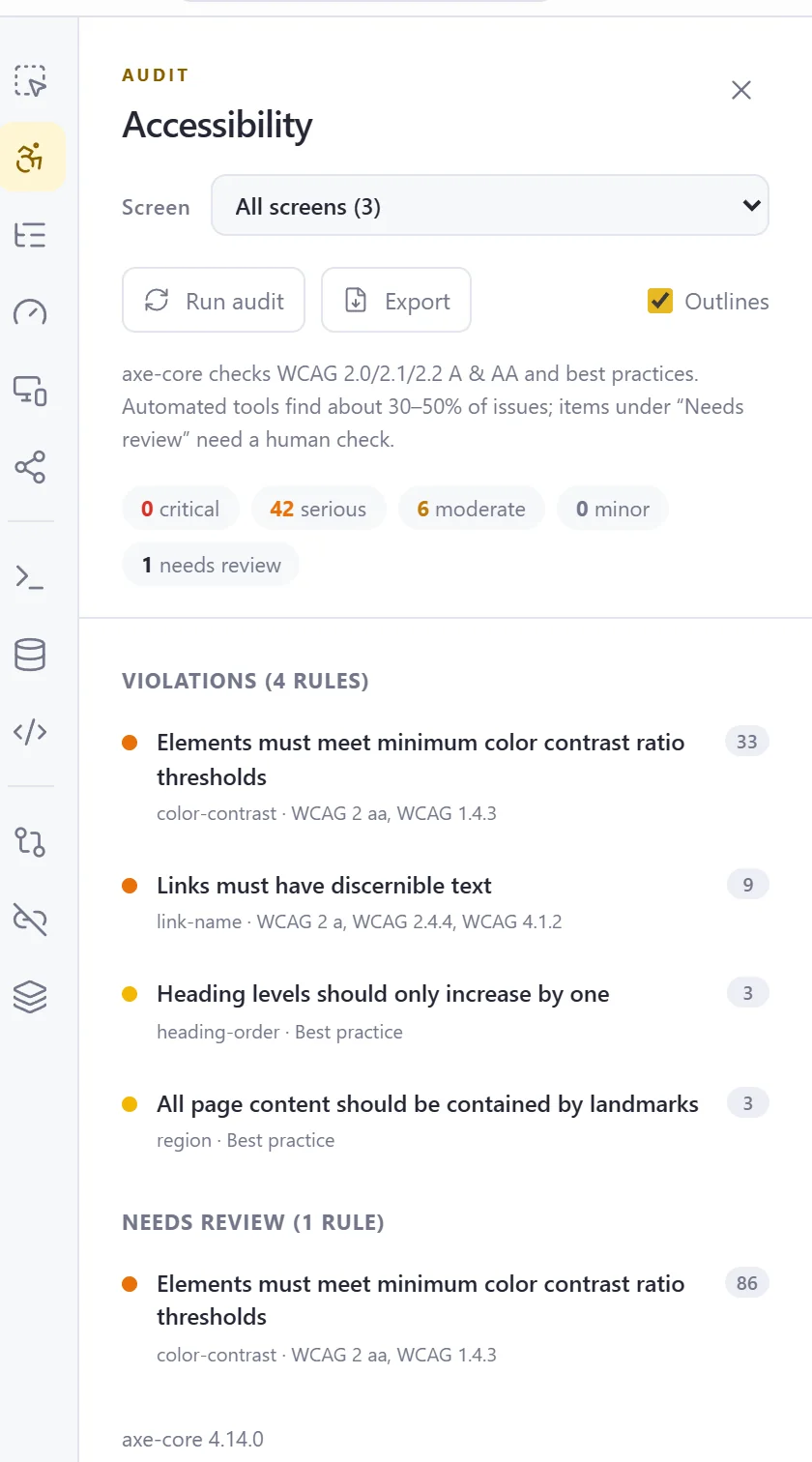
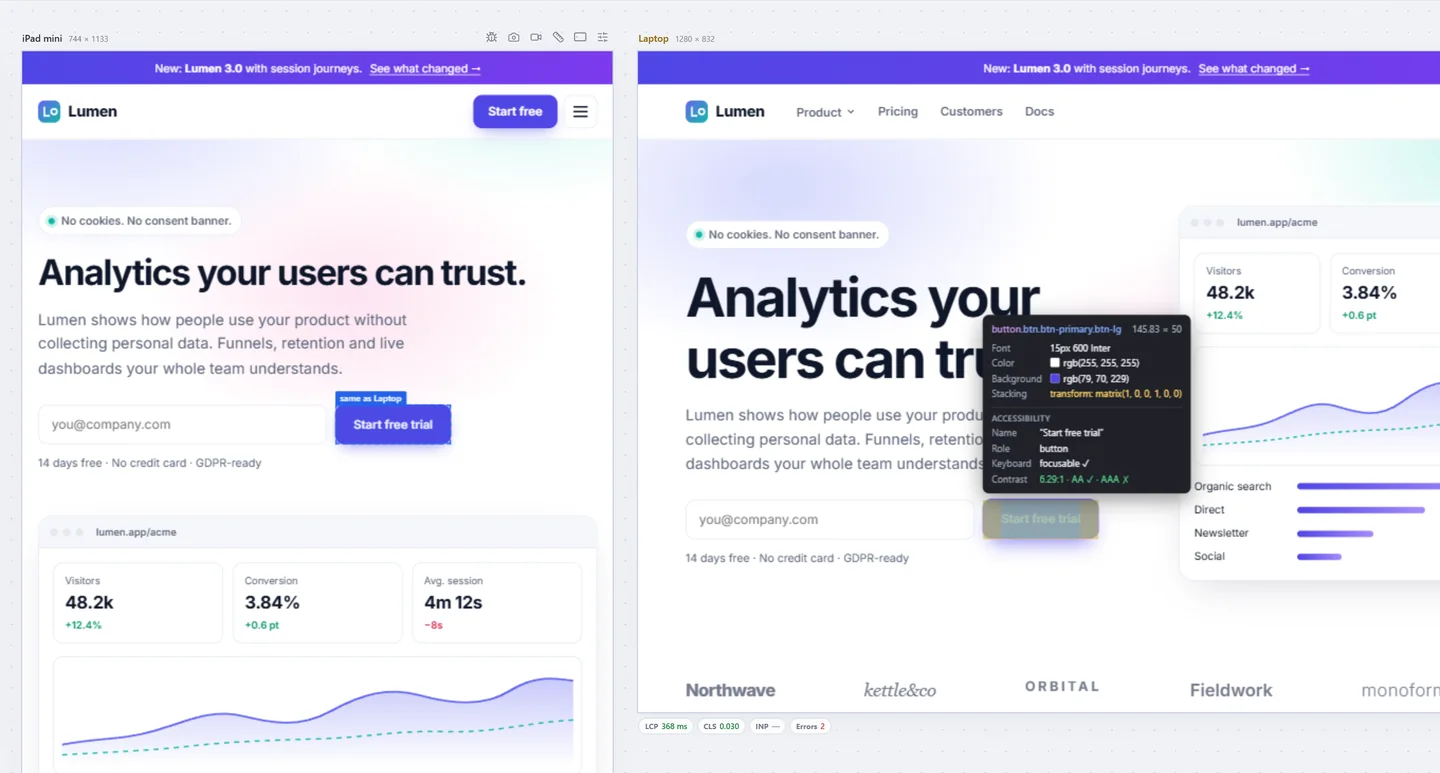
Hover for name, role and contrast
Inspect shows what assistive technology gets: the accessible name, the role, whether it can be focused with a keyboard, ARIA attributes and the contrast ratio against AA and AAA.
- Same element highlighted on every screen
- Click to compare it across screens
- Hidden-from-AT and stacking information included
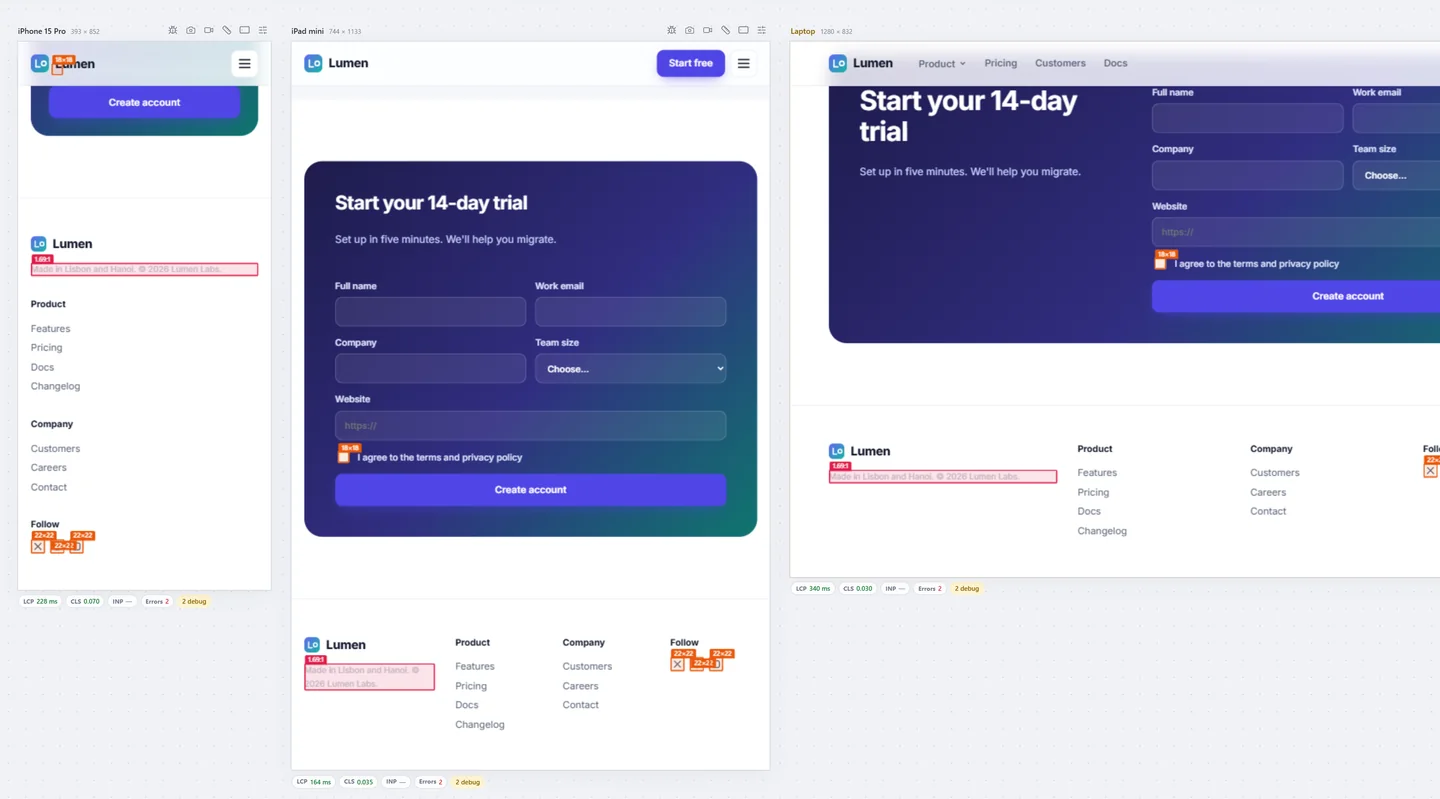
Contrast and target size, marked in place
Overlays mark text below AA or AAA contrast and interactive elements smaller than 24, 44 or 48 pixels, on the live page, so you know exactly what to fix.
- WCAG 1.4.3, 1.4.6 and 2.5.8
- Track focus draws a ring around the focused element
- Text spacing applies WCAG 1.4.12
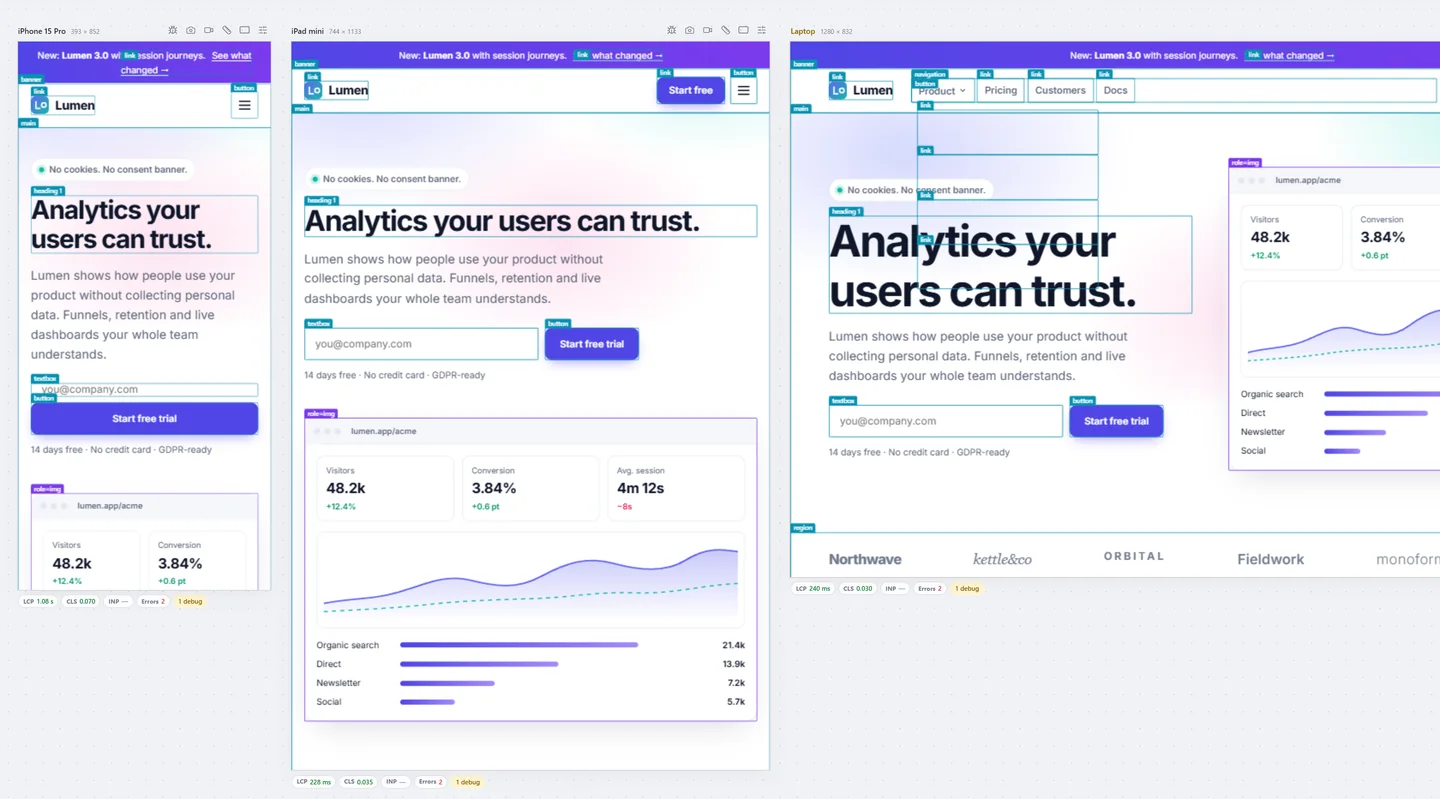
Roles, landmarks and ARIA on the page
Label every landmark, heading, link, button and form control with its role, or every element that has aria-* attributes.
- Show roles
- Show ARIA attributes
- Small text and dyslexia simulation
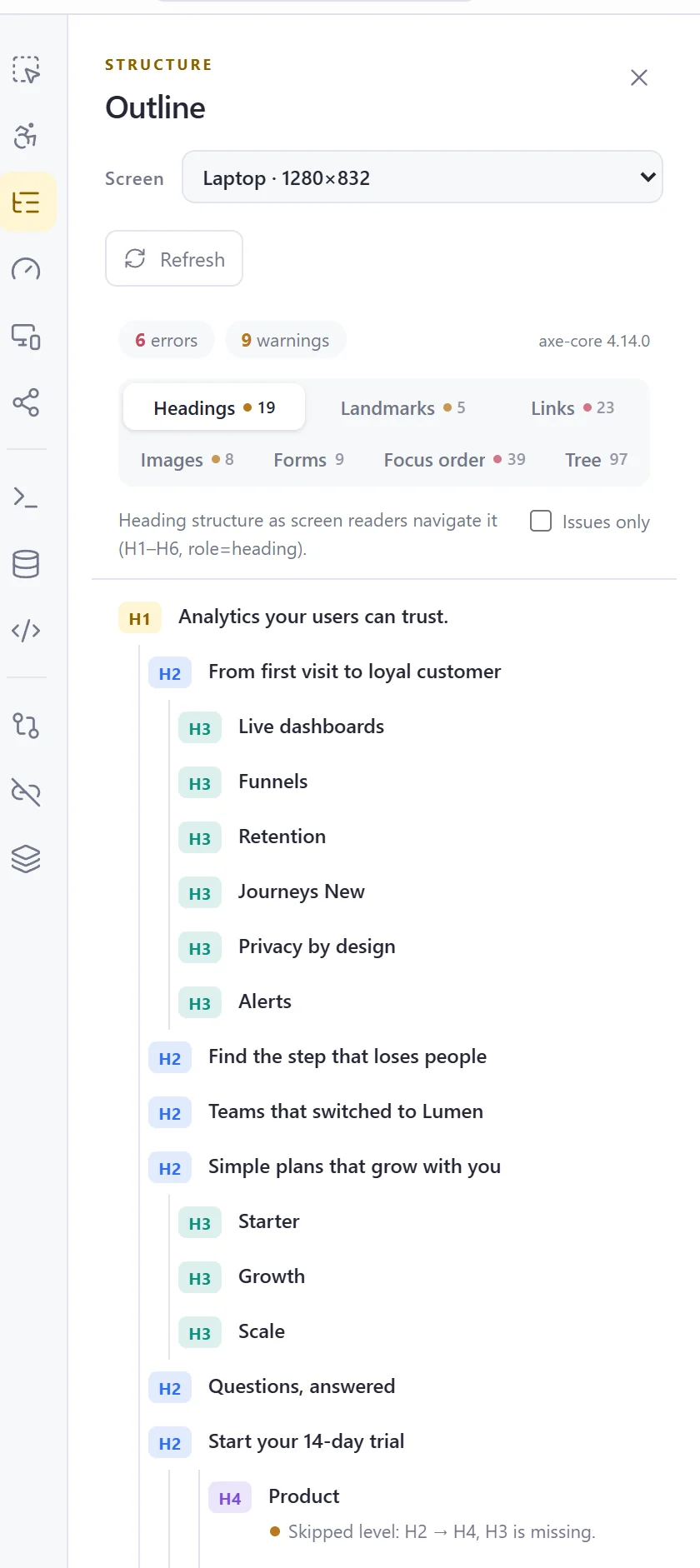
Headings, landmarks and focus order
The Outline panel shows the heading tree, landmarks, links, images, forms and the accessibility tree, with the tab order drawn as numbers on the page.
- Skipped heading levels and missing alt text flagged
- Focus order numbered on the screen
Also in Accessibility
Vision simulations
18 simulations from colour blindness to tunnel vision, per screen.
Font size (WCAG 1.4.4)
Change the default font size of the workspace to check text resizing.
Forced colors & contrast
Emulate forced colors, prefers-contrast, reduced transparency and reduced motion.
Test every screen before your users do.
Free to start. Pro for 3 days without a card.