Free
The everyday multi-screen workspace.
$0forever
No account needed
- Up to 3 screens
- Device library and sync
- Inspect & Elements
- Console for every screen
- Responsive check
- Screenshots up to 2×
- Horizontal, Vertical, Grid, Focus
Panescope opens your site on phones, tablets and laptops side by side, in sync, and gives you the tools to fix what you find: inspect, accessibility, Web Vitals and 42 debug tools.

From the first look on a phone to the report you send the client. All features
Every screen size at once, in sync.
7 features42 tools for layout, vision and content.
5 featuresWCAG 2.2 audits, contrast, focus and roles.
5 featuresCore Web Vitals per screen, with field data.
3 featuresInspect, console, live CSS, storage, network.
6 featuresMeta tags, structured data, 11 link previews.
3 featuresUp to 16× captures, mockups, recordings.
4 featuresVisual diff, site scan, links, reports, issues.
6 featuresFour steps, one workspace, no device lab.
Click the extension on any page, localhost included. Your phones, tablets and laptops appear side by side, in sync.
Hover any screen to see the element on all of them, with its accessible name, role and contrast. Click to compare.
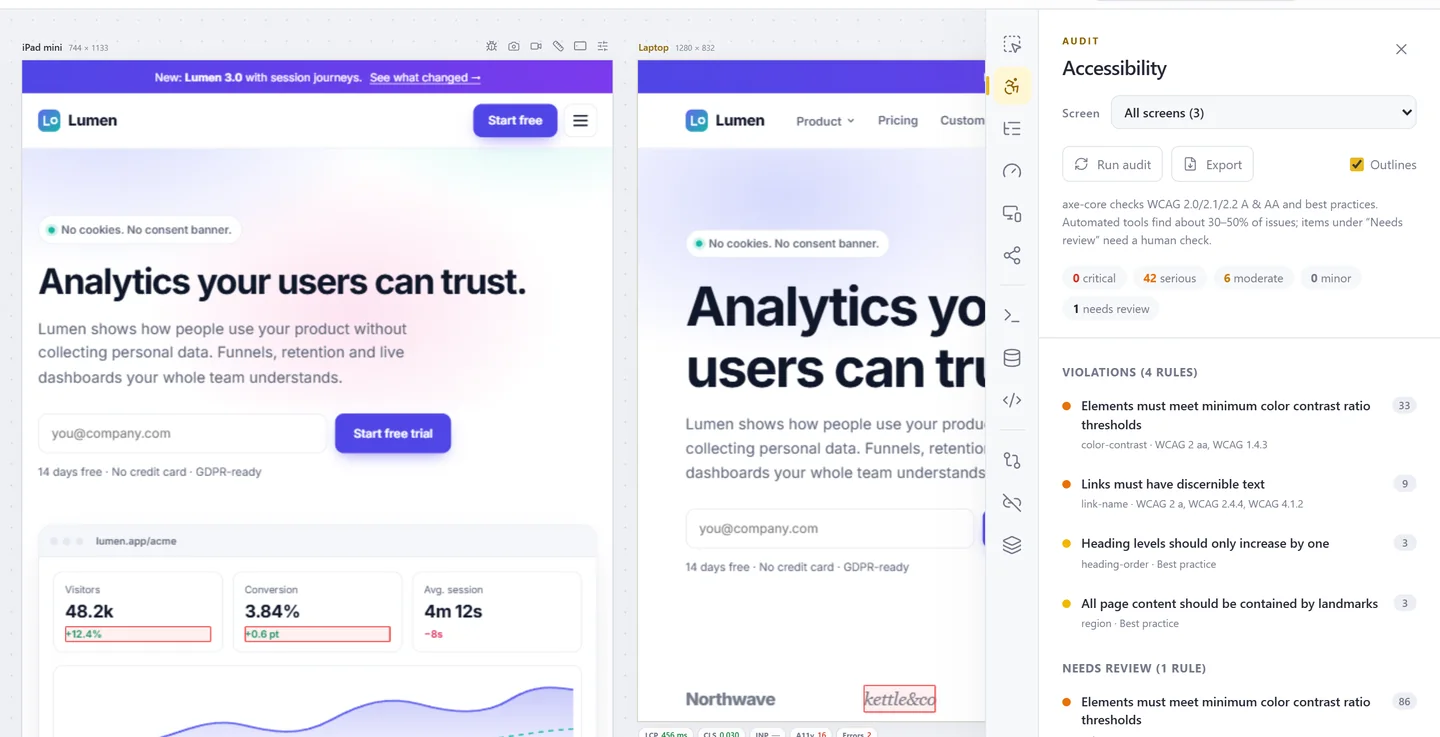
Accessibility, Web Vitals, console errors, broken links and 42 debug tools, on one screen or all of them.
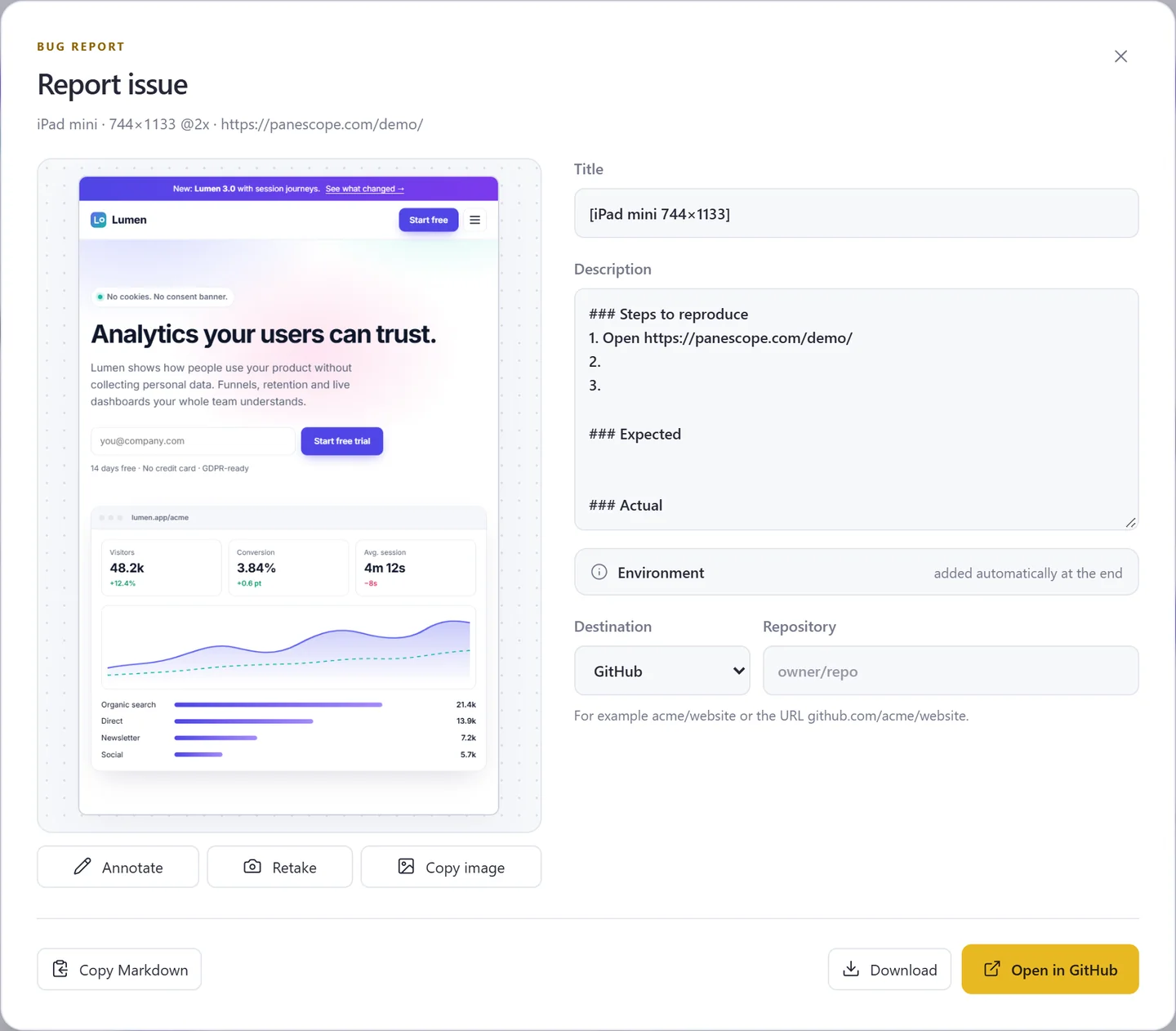
A visual diff for the pull request, an issue with the environment filled in, or a report your client can print.
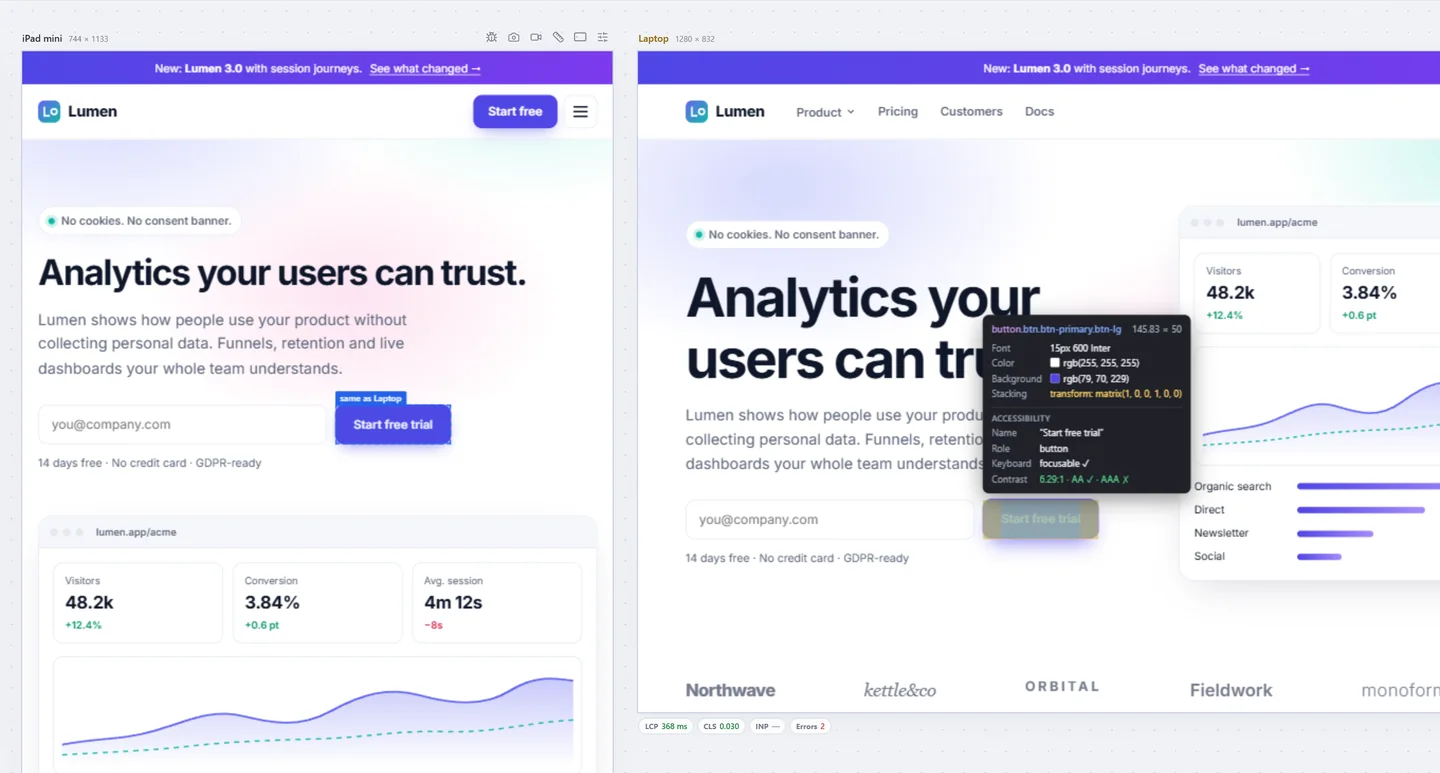
This is the Lumen demo site in three real screens, synced the way Panescope syncs them. Scroll inside any of them.
In Panescope, clicks, hover and typing sync too — and each screen has its real pixel ratio. How sync works
Scroll position, navigation, clicks, hover and typing repeat on every screen, so you test one flow on all sizes at once.
Chrome DevTools is great for one viewport. Panescope is for the moment you need to see — and check — all of them together.
| Panescope | DevTools device mode | |
|---|---|---|
| Screens at once | Many, side by side | One at a time |
| Scroll, clicks, hover and input in sync | Yes | No |
| Real pixel ratio and media queries per screen | Yes | One device at a time |
| Accessibility audit on every size | axe-core, every screen | Lighthouse, one run per size |
| Compare one element across sizes | Yes, differences highlighted | No |
| Vision simulations | 18, per screen | 6, whole tab |
| Screenshots | Up to 16×, mockups, annotate | Device size, 1×–3× |
| Visual diff, site scan, reports, issues | Built in | No |
The everyday multi-screen workspace.
No account needed
Every tool, unlimited screens, up to 3 devices.
$6.58 a month, billed yearly
Upgrade from inside the extension · Secure payment by Stripe
Pricing and billing questions are on the pricing page. Inside the extension, every panel explains what it measures.
No. Pages load in your own browser, in the extension's workspace. Panescope's server only handles licensing and payments and, for Pro without your own key, CrUX lookups of public URLs.
Yes: any http or https page, including localhost, preview deployments and sites behind basic auth or a header. Field data from CrUX only exists for public pages.
Some emulation (user agent from the first request, throttling, touch, timezone, CPU) uses Chrome's debugger API. Chrome shows that bar while it is on. Color scheme, sync, inspect and the audits don't need it.
Free has up to 3 screens, screenshots up to 2×, Inspect and Elements, the responsive check, the console, sync and the Horizontal, Vertical, Grid and Focus layouts. Pro unlocks everything else: unlimited screens, the audits, debug tools, Live CSS, storage, emulation, visual diff, site scan, reports, recordings, mockups and up to 16× captures.
Start it from the upgrade dialog: Pro for 3 days on that device, no card needed. It can be used once.
Up to 3 devices per license. Deactivate a device from Settings › License to move the license to another one.
Yes, at any time, from the billing portal (Settings › License › Manage billing). Pro stays on until the end of the period you paid for.
English, Tiếng Việt, 简体中文, Español, Português (Brasil), 日本語, 한국어, Deutsch, Français, Русский and हिन्दी. Tool names stay in English.
Free to start. Pro for 3 days without a card.